Jupyter Server Extension with Streamable HTTP Transport
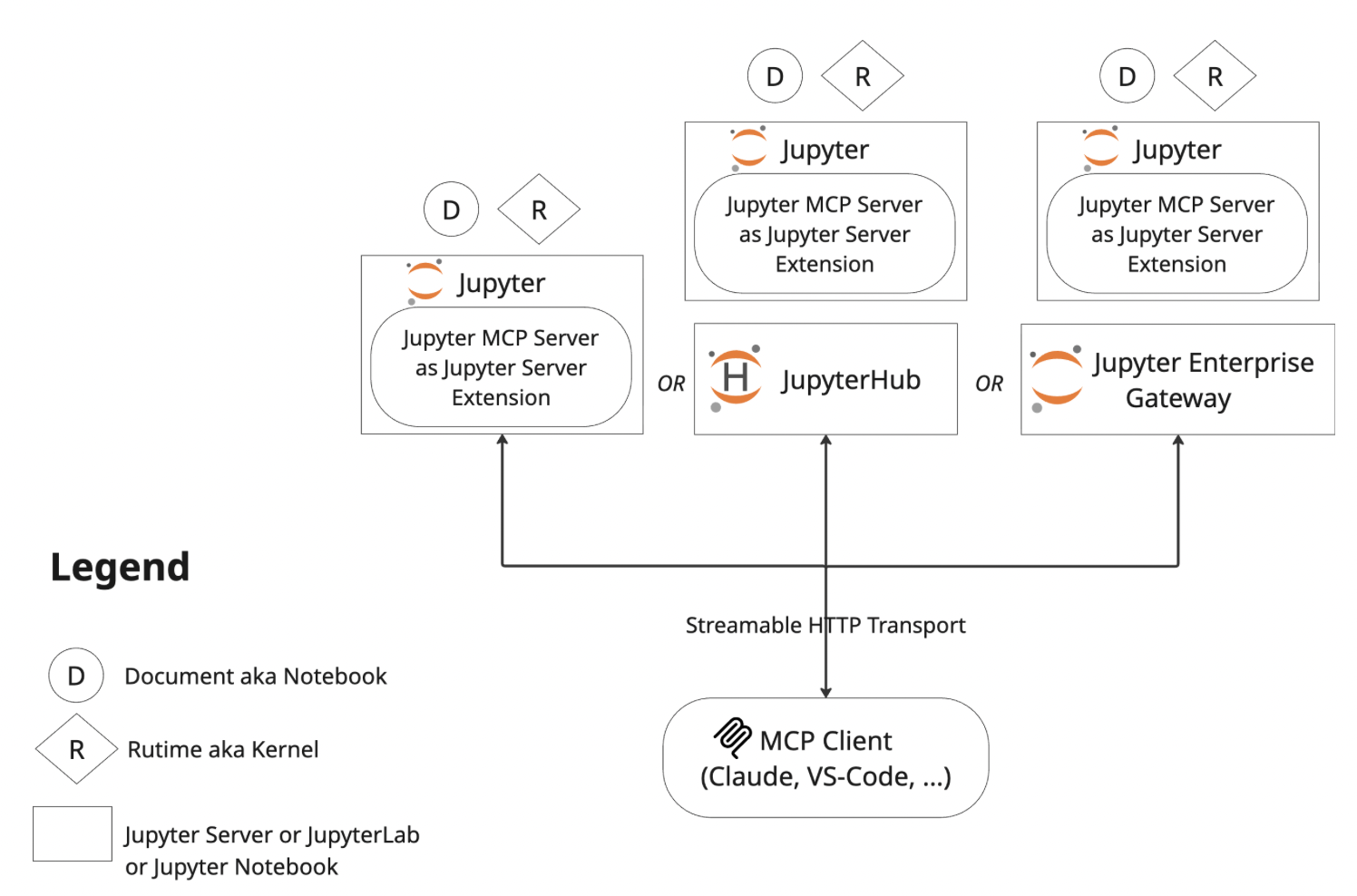
The following diagram illustrates how Jupyter MCP Server runs as an extension inside a Jupyter server and communicates with an MCP client. In this configuration, you don't need to run a separate MCP server. It will start automatically when you start your Jupyter server. Note that only Streamable HTTP transport is supported in this configuration.
1. Start JupyterLab and the MCP Server
Environment setup
Make sure you have the following packages installed in your environment. The collaboration package is needed as the modifications made on the notebook can be seen thanks to Jupyter Real Time Collaboration.
pip install "jupyter-mcp-server>=0.15.0" "jupyterlab==4.4.1" "jupyter-collaboration==4.0.2" "ipykernel" "pycrdt"
To confirm your environment is correctly configured:
- Open a notebook in JupyterLab
- Type some content in any cell (code or markdown)
- Observe the tab indicator: you should see an "×" appear next to the notebook name, indicating unsaved changes
- Wait a few seconds—the "×" should automatically change to a "●" without manually saving
This automatic saving behavior confirms that the real-time collaboration features are working properly, which is essential for MCP server integration.
Start JupyterLab with MCP Extension
Start JupyterLab with the MCP server extension:
jupyter lab --port 4040 --IdentityProvider.token MY_TOKEN
This starts JupyterLab at http://127.0.0.1:4040 with the MCP server integrated.
For complete configuration options, see the server configuration guide.
2. Configure your MCP Client
MCP clients must authenticate to the MCP server by sending an Authorization header with Bearer token
specified with --IdentityProvider.token when starting JupyterLab.
Claude Code
claude mcp add jupyter --transport http http://127.0.0.1:4040/mcp \
  --header "Authorization: Bearer MY_TOKEN"
Other MCP Clients (using mcp-remote)
{
  "mcpServers": {
    "jupyter": {
      "command": "npx",
      "args": [
        "mcp-remote",
        "http://127.0.0.1:4040/mcp",
        "--header",
        "Authorization:${MCP_AUTH_HEADER}"
      ],
      "env": {
        "MCP_AUTH_HEADER": "Bearer MY_TOKEN"
      }
    }
  }
}
Some clients (Cursor, Claude Desktop on Windows) have a bug where spaces inside args aren't escaped. Use no spaces around : in the header arg and put the space-containing value (Bearer <token>) in an environment variable as shown above.
Troubleshooting
Common Issues
Extension not loading:
- Verify
jupyter-mcp-serveris installed:pip list | grep jupyter-mcp-server - Check JupyterLab logs for extension errors
MCP endpoint not accessible:
- Verify server is running at:
curl http://localhost:4040/mcp - Check that port 4040 is not blocked
Authentication errors (401/403):
- Verify authentication token is accepted:
curl -H "Authorization: Bearer MY_TOKEN" http://localhost:4040/mcp/healthz
For detailed configuration and troubleshooting, see the configuration guide.